<?xml version="1.0" encoding="utf-8"?><feed xmlns="http://www.w3.org/2005/Atom" ><generator uri="https://jekyllrb.com/" version="3.10.0">Jekyll</generator><link href="//feed.xml" rel="self" type="application/atom+xml" /><link href="//" rel="alternate" type="text/html" /><updated>2026-02-26T02:19:42+00:00</updated><id>//feed.xml</id><title type="html">The home of Joshua Morse, an experienced product design leader.</title><subtitle>For 14 years I have used my skills in product design, research, development, analytics, and management to improve the experience for users of complex and compelling products.</subtitle><entry><title type="html">Filtering remote employees in Google Analytics using Google Tag Manager</title><link href="//2015/06/14/filtering-internal-employees-in-google-analytics-using-google-tag-manager/" rel="alternate" type="text/html" title="Filtering remote employees in Google Analytics using Google Tag Manager" /><published>2015-06-14T00:00:00+00:00</published><updated>2015-06-14T00:00:00+00:00</updated><id>//2015/06/14/filtering-internal-employees-in-google-analytics-using-google-tag-manager</id><content type="html" xml:base="//2015/06/14/filtering-internal-employees-in-google-analytics-using-google-tag-manager/"><![CDATA[<h3 id="the-distributed-employee-problem">The distributed employee problem</h3>

<p>One challenge faced by nearly all SaaS companies is how to keep company employees from skewing analytics data, particularly web analytics. While internal employees have frequent interactions with web products and marketing sites, their activity is often quite different from users and prospective customers. As a result, internal data can skew analytics reports and, in the worse case, cause stakeholders to make improper design decisions.</p>

<p>The most common way to filter internal users is by <a href="https://support.google.com/analytics/answer/1034840?hl=en">using an IP address filter in Google Analytics</a> to filter your office IP addresses; indeed, this approach was implemented before I arrived at RightScale five years ago. This is a great solution if your workforce always works from the same location. With the increasingly distributed nature of tech professionals, however, this approach becomes insufficient. This was the exact problem we encountered at RightScale, where a third of the company are remote workers, and locals often find themselves working from home or the road.</p>

<h3 id="do-not-track-page">Do not track page</h3>

<p>Our first attempt was made several years ago, before we started using Google Tag Manager. We created a page on our main company site that would install a cookie identifying the user as a RightScale employee, and directed our employees to visit the page. We then set up filters in Google Analytics to filter out users with that cookie.</p>

<p>The problem was that our employees would often fail to visit the page, use a new browser, or clear their cookies. In addition, the Google Analytics filters were limited in the scope of what they could block (only Google Analytics).</p>

<h3 id="using-google-tag-manager-with-your-internal-portal">Using Google Tag Manager with your internal portal</h3>

<p>After introducing <a href="https://www.google.com/url?sa=t&amp;rct=j&amp;q=&amp;esrc=s&amp;source=web&amp;cd=1&amp;cad=rja&amp;uact=8&amp;ved=0CB4QFjAAahUKEwiCnMLuwY_GAhXXMYgKHW6JDC8&amp;url=http%3A%2F%2Fwww.google.com%2Ftagmanager%2F&amp;ei=rp99VYKNL9fjoATukrL4Ag&amp;usg=AFQjCNEz8Rr9hdmfKjodp0_fzx4UwR8oYg&amp;sig2=NnGyhhQDmE7Dh_pYAgAHkw&amp;bvm=bv.95515949,d.cGU">Google Tag Manager</a> (GTM) over a year ago, I decided to revisit the problem of tracking internal traffic. With all of our web properties using Google Tag Manager to track not only with Google Analytics, but with other 3rd party tags as well, it seemed the correct place to implement a solution. I also realized that using an internal portal that all employees visit regularly (in this case the company wiki) would relieve our employees of the burden of remembering to visit a ‘Do not track’ page.</p>

<p>After careful research, I decided to try two approaches, both of which are outlined below. While both have advantages and disadvantages, I found that the 1st-party cookie option worked best for us.</p>

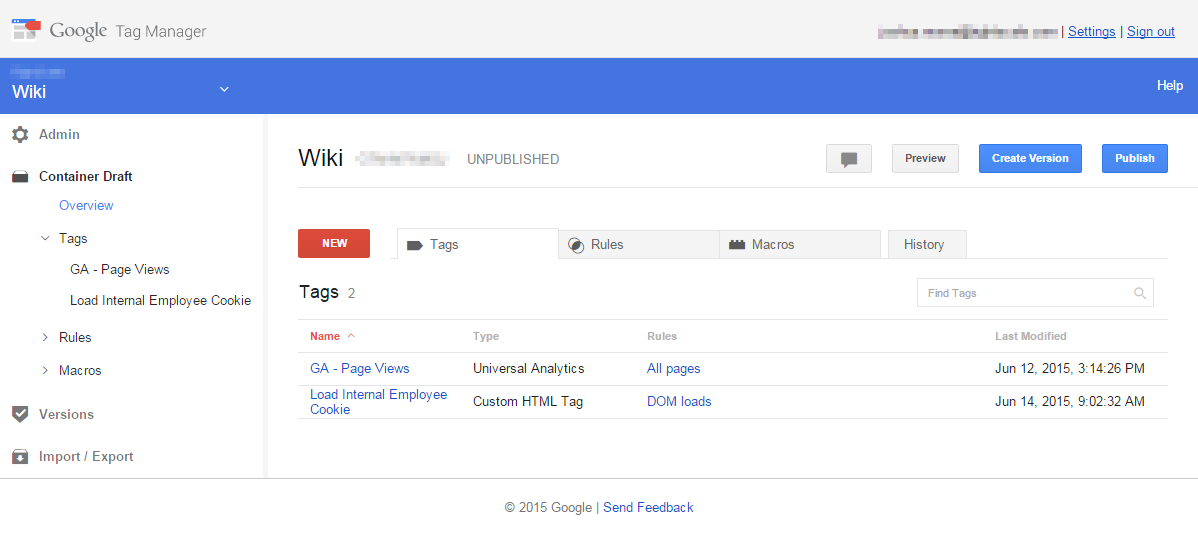
<p>Note that the first step in both cases outlined below is to <strong>add the Google Tag Manager Snippet to your internal portal.</strong> In our case, I created a new container for our Wiki and had our IT team embed it into our Confluence Wiki. If you are not currently using GTM in your organization, I strongly advise you to <a href="http://www.google.com/tagmanager/get-started.html">view the getting started information</a> that Google provides and set up GTM containers and tags for your web properties.</p>

<div id="attachment_650" style="width: 310px" class="wp-caption aligncenter">
  <a href="/assets/oldsite/wp-content/uploads/2015/06/2015-06-14-08_44_02-Google-Tag-Manager.png" data-rel="lightbox-0"><img class="wp-image-650 size-medium" src="/assets/oldsite/wp-content/uploads/2015/06/2015-06-14-08_44_02-Google-Tag-Manager-300x136.png" alt="GTM Wiki Container" width="300" height="136" /></a>
  
  <p class="wp-caption-text">
    GTM Wiki Container
  </p>
</div>

<h3 id="filtering-users-with-custom-dimensions">Filtering users with Custom Dimensions</h3>

<p><strong>Advantages</strong></p>

<ul>
  <li>Does not require any custom code</li>
</ul>

<p><strong>Disadvantages</strong></p>

<ul>
  <li>Harder to implement on multiple web properties</li>
  <li>Only works for Google Analytics data, not other GTM tags</li>
  <li>Data is still reported to Google Analytics (though filtered)</li>
</ul>

<p><strong>Instructions</strong></p>

<p>The simplest (though not necessarily easiest) way to filter users is to add a new custom dimension to track your users. This method makes the most sense if you only use one Google Analytics property, and do not need to filter employees from additional 3rd party tracking software like Marketo.</p>

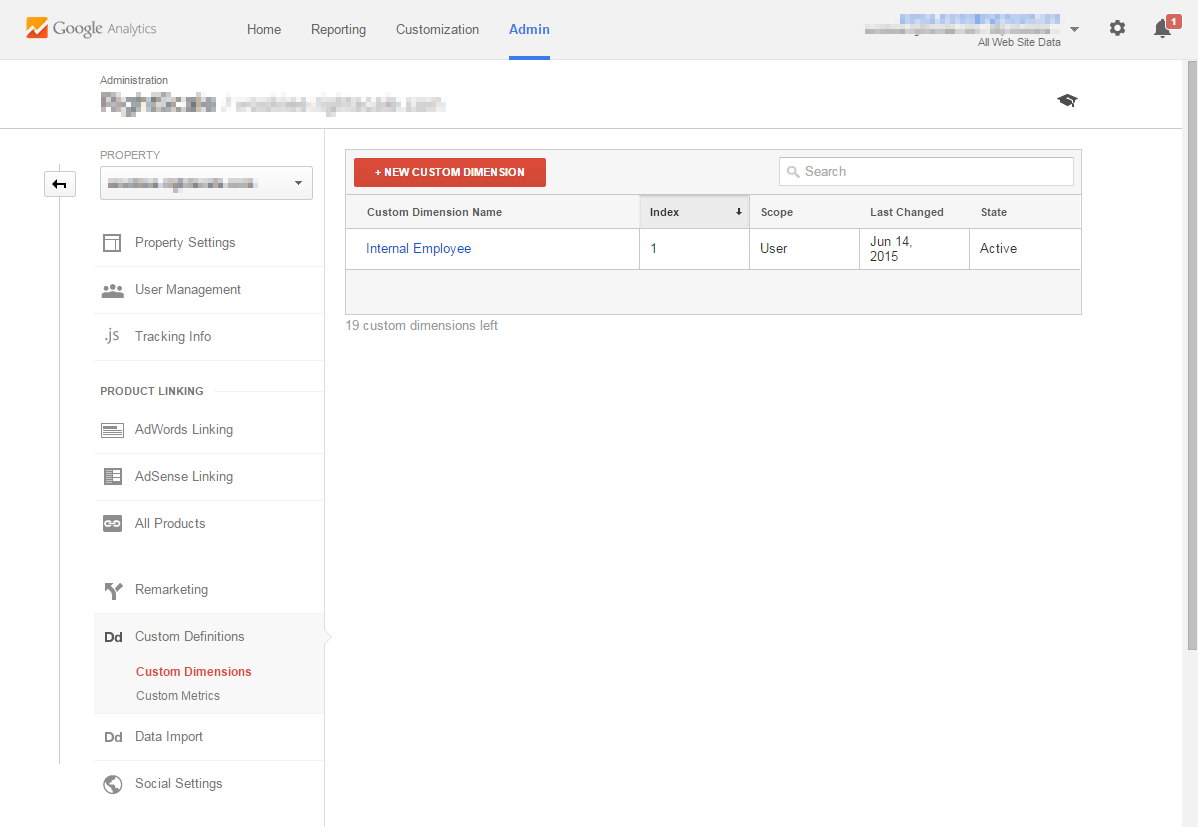
<p>To do this, you must navigate to the Google Analytics Admin section and select the properties that you use for the sites and/or products that you want to filter. Select ‘Custom Dimensions’ and click the button to create a new custom dimension. Choose (and remember) an index, and set the scope to user. Note that you will need to do this for each property that you wish to avoid tracking; if you have more than one property, you may want to use the 1st-party cookie method outlined below.</p>

<div id="attachment_652" style="width: 310px" class="wp-caption aligncenter">
  <a href="/assets/oldsite/wp-content/uploads/2015/06/2015-06-14-08_57_58-Google-Analytics.png" data-rel="lightbox-1"><img class="size-medium wp-image-652" src="/assets/oldsite/wp-content/uploads/2015/06/2015-06-14-08_57_58-Google-Analytics-300x207.png" alt="Create Custom Dimension" width="300" height="207" /></a>
  
  <p class="wp-caption-text">
    Create Custom Dimension
  </p>
</div>

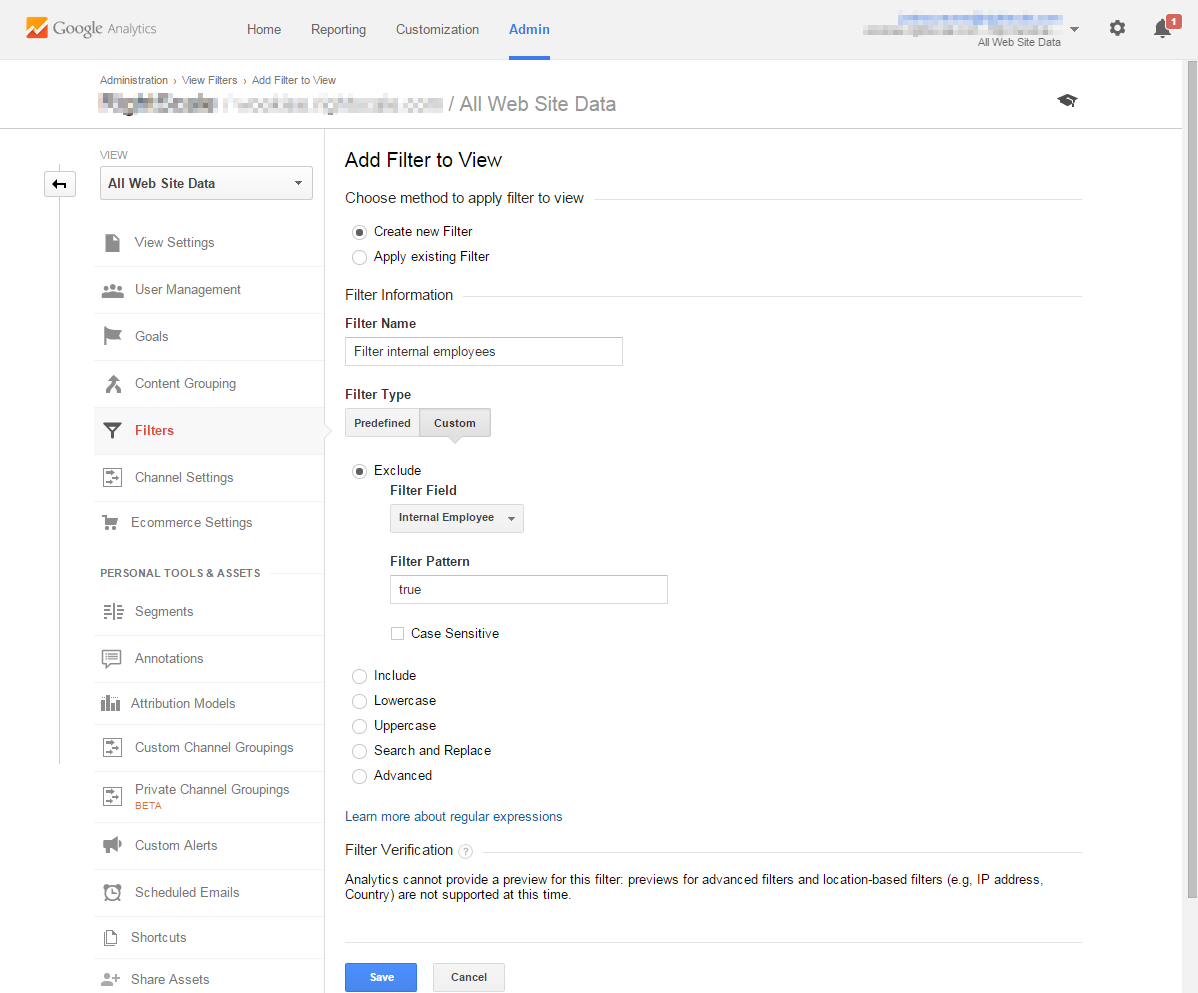
<p>Next, you will need to create two filters in each view for each Google Analytics property that you don’t wish to track. Select the property and view in the Admin section, then select Filters on the left. Create a new filter with a ‘Custom’ filter type. Select ‘Exclude’, and choose the Custom Dimension you created above in the filter field. For filter pattern, use ‘true’, then save the filter.</p>

<p>If your views aren’t already filtered to a specific hostname, you will likely also want to add a filter so that users visits to your internal portal do not show up in reports for your properties. To do this, create a new exclude filter for the hostname of your internal portal (e.g. “intranet.acme.com”).</p>

<div id="attachment_657" style="width: 310px" class="wp-caption aligncenter">
  <a href="/assets/oldsite/wp-content/uploads/2015/06/2015-06-14-10_10_41-Google-Analytics.png" data-rel="lightbox-2"><img class="size-medium wp-image-657" src="/assets/oldsite/wp-content/uploads/2015/06/2015-06-14-10_10_41-Google-Analytics-300x249.png" alt="Create a GA filter" width="300" height="249" /></a>
  
  <p class="wp-caption-text">
    Create a GA filter
  </p>
</div>

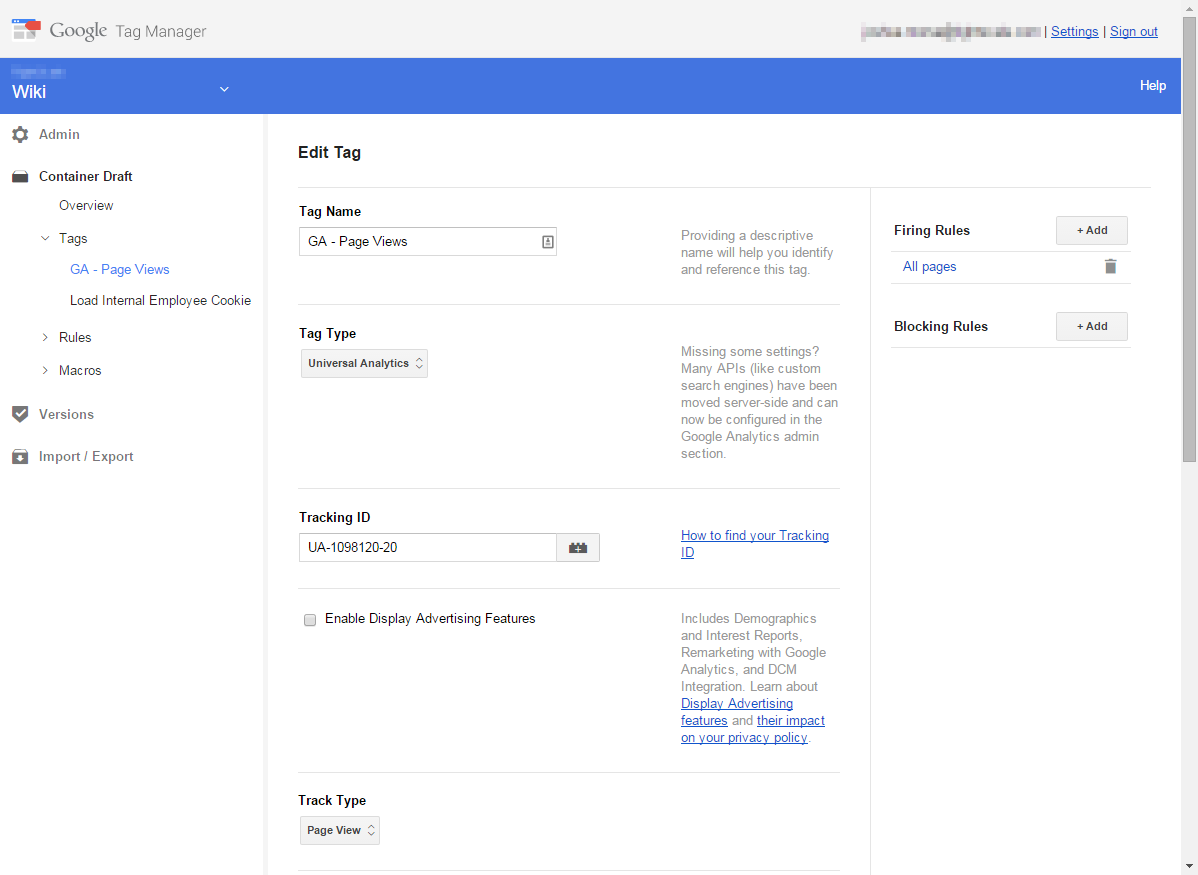
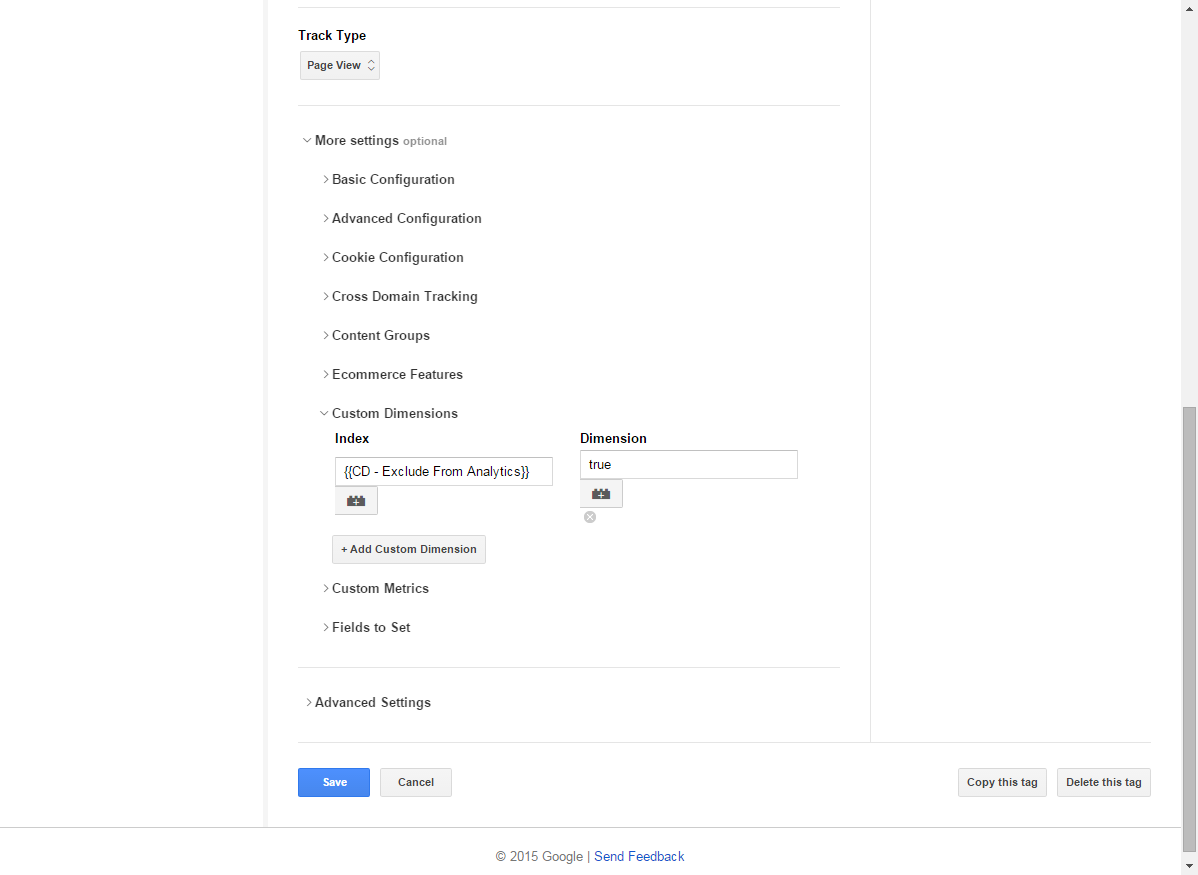
<p>Now, navigate to your GTM container for your internal portal. You will need to add a new tag. For firing rules, use the default “All pages” rule. For tag type, select “Universal Analytics” and enter your Google Analytics Tracking ID (or use a macro to store the string). For track type, select ‘Page View’, then expand More settings and Custom Dimensions. Under Index, enter the index for the custom dimension that you just created in Google Analytics. For your Dimension, enter true. Then, save the tag. After <a href="https://support.google.com/tagmanager/answer/2695660?hl=en">testing with the preview option</a>, publish your tag.</p>

<p style="text-align: center;">
  <a href="/assets/oldsite/wp-content/uploads/2015/06/2015-06-14-09_08_08-Google-Tag-Manager.png" data-rel="lightbox-3"><img class="aligncenter size-medium wp-image-653" src="/assets/oldsite/wp-content/uploads/2015/06/2015-06-14-09_08_08-Google-Tag-Manager-300x219.png" alt="No Track Pageview tag" width="300" height="219" /></a>
</p>

<div id="attachment_654" style="width: 310px" class="wp-caption aligncenter">
  <a href="/assets/oldsite/wp-content/uploads/2015/06/2015-06-14-09_09_42-Google-Tag-Manager.png" data-rel="lightbox-4"><img class="size-medium wp-image-654" src="/assets/oldsite/wp-content/uploads/2015/06/2015-06-14-09_09_42-Google-Tag-Manager-300x219.png" alt="GTM Tag with Custom Dimension" width="300" height="219" /></a>
  
  <p class="wp-caption-text">
    GTM Tag with Custom Dimension
  </p>
</div>

<p>At this point, anyone who visits your internal portal and then visits your web properties will be filtered from the analytics reports. Unfortunately, your other tags for things like 3rd party marketing tracking will still fire for your internal employees. In addition, your employee visits will still be sent to Google Analytics, they will just be filtered out.</p>

<h3 id="filtering-employees-with-a-1st-party-cookie">Filtering employees with a 1st party cookie</h3>

<p><strong>Advantages</strong></p>

<ul>
  <li>Works across multiple Google Analytics properties</li>
  <li>Does not require any configuration in Google Analytics</li>
  <li>Can filter employees from any GTM tag</li>
  <li>No data reported to Google Analytics</li>
</ul>

<p><strong>Disadvantages</strong></p>

<ul>
  <li>Requires some custom code</li>
</ul>

<p>Using a cookie to filter internal users is the most robust and flexible method. It works easily across any number of Google Analytics properties, can be used to filter employees from other 3rd party software, and does not report any data at all to Google Analytics for employees. The main downside is that it will require one fairly small custom HTML tag to be added to your internal portal with GTM. If your IT team doesn’t object, a 1st party cookie is probably the best solution for you.</p>

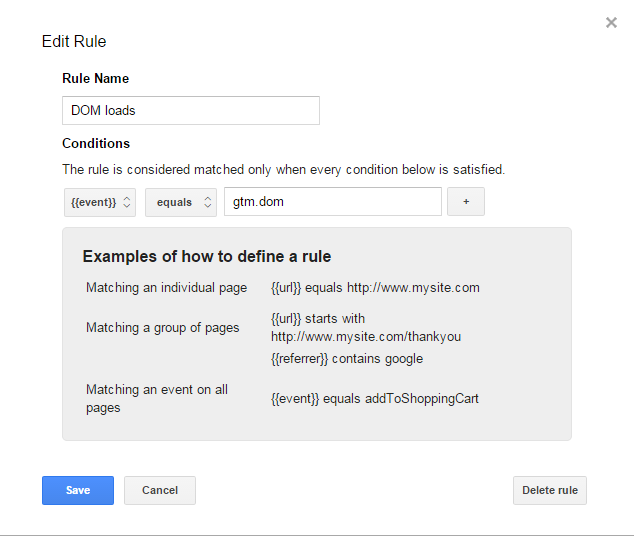
<p>The first step is to create a custom HTML tag to insert the cookie into visitors’ browsers. To do this, navigate to the GTM container for your internal portal and create a new rule. The rule should be ‘event’ ‘equals’ ‘gtm.dom’. This rule when fire when the page has finished loading; you will need it for your next tag.</p>

<div id="attachment_661" style="width: 310px" class="wp-caption aligncenter">
  <a href="/assets/oldsite/wp-content/uploads/2015/06/2015-06-14-14_00_31-Google-Tag-Manager.png" data-rel="lightbox-5"><img class="size-medium wp-image-661" src="/assets/oldsite/wp-content/uploads/2015/06/2015-06-14-14_00_31-Google-Tag-Manager-300x254.png" alt="Create a DOM load event" width="300" height="254" /></a>
  
  <p class="wp-caption-text">
    Create a DOM load event
  </p>
</div>

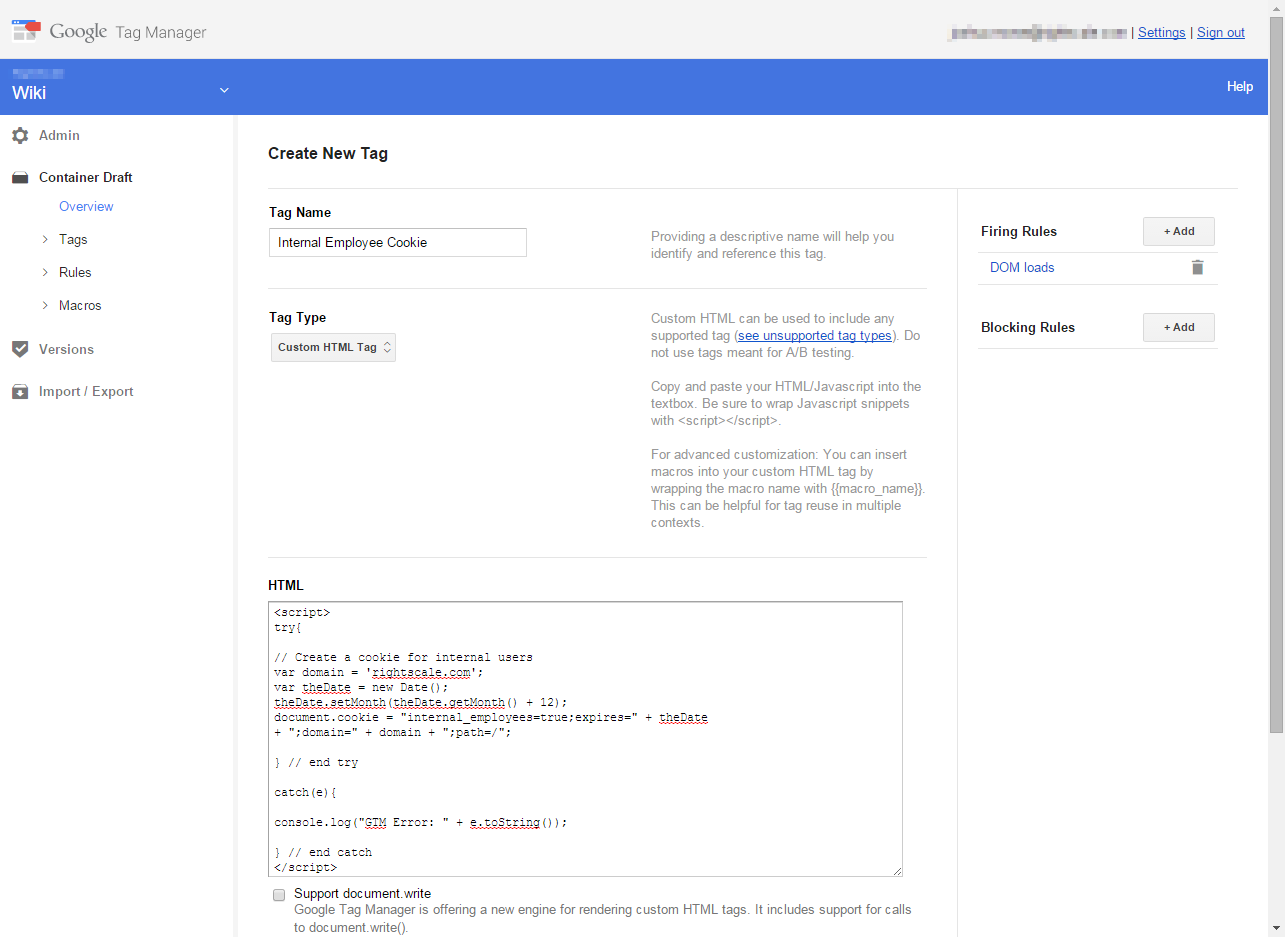
<p>Now you will need to create the tag which will generate the cookie. Name your tag and add your DOM loads rule to the tag. Select ‘Custom HTML’ for the tag type and paste the following code, replacing ‘acme.com’ with your own domain (do not add www or any subdomain):</p>

<p><code class="language-plaintext highlighter-rouge">&lt;br /&gt;
&lt;script&gt;&lt;br /&gt;
try{</code></p>

<p>// Create a cookie for internal users<br />
var domain = ‘acme.com’;<br />
var theDate = new Date();<br />
theDate.setMonth(theDate.getMonth() + 12);<br />
document.cookie = “internal_employee=true;expires=” + theDate</p>
<ul>
  <li>“;domain=” + domain + “;path=/”;</li>
</ul>

<p>} // end try</p>

<p>catch(e){</p>

<p>console.log(“GTM Error: ” + e.toString());</p>

<p>} // end catch<br />
&lt;/script&gt;</p>

<p>Then save the tag, test, and publish it. Users should receive your new cookie called ‘internal_employee’ when visiting your internal portal. You can test this in the Google Chrome browser by opening the inspector (Ctrl/Cmd+Shift+c), clicking the resources tab, expanding ‘cookies’, and viewing the cookies for your domain.</p>

<div id="attachment_663" style="width: 310px" class="wp-caption aligncenter">
  <a href="/assets/oldsite/wp-content/uploads/2015/06/2015-06-14-14_20_03-Google-Tag-Manager.png" data-rel="lightbox-6"><img class="size-medium wp-image-663" src="/assets/oldsite/wp-content/uploads/2015/06/2015-06-14-14_20_03-Google-Tag-Manager-300x219.png" alt="Internal employee cookie tag" width="300" height="219" /></a>
  
  <p class="wp-caption-text">
    Internal employee cookie tag
  </p>
</div>

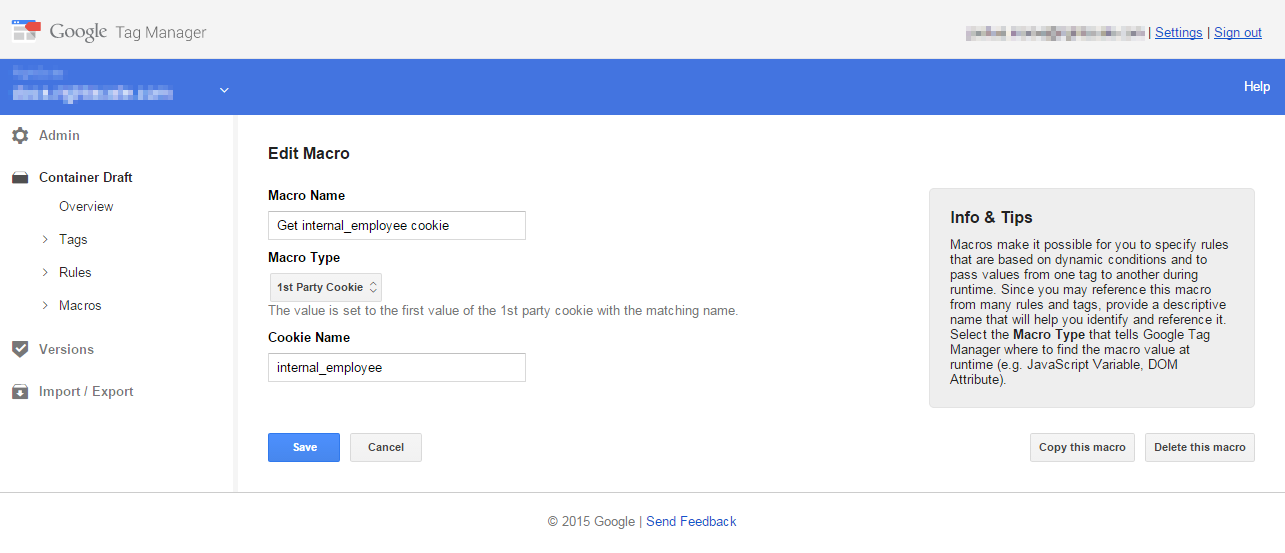
<p>Now, navigate to any GTM containers which have tags that you want to prevent from recording internal users. In those containers, you will need to create a macro and a rule. First create the macro to retrieve the cookie value. In the new macro page, select ‘1st Party Cookie’ for the Macro Type and enter internal_employee for the Cookie Name.</p>

<div id="attachment_664" style="width: 310px" class="wp-caption aligncenter">
  <a href="/assets/oldsite/wp-content/uploads/2015/06/2015-06-14-14_34_13-Google-Tag-Manager.png" data-rel="lightbox-7"><img class="size-medium wp-image-664" src="/assets/oldsite/wp-content/uploads/2015/06/2015-06-14-14_34_13-Google-Tag-Manager-300x129.png" alt="Get Cookie Macro" width="300" height="129" /></a>
  
  <p class="wp-caption-text">
    Get Cookie Macro
  </p>
</div>

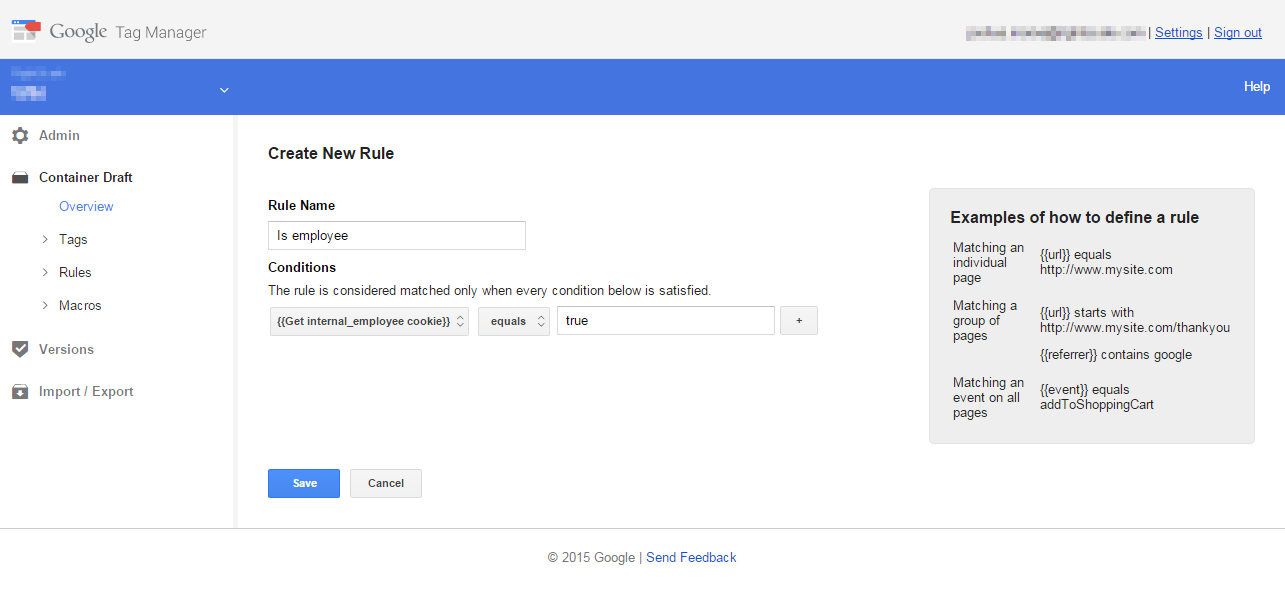
<p>Now, create a simple rule using that cookie. The rule should be set to trigger when ‘{{Get internal_employee cookie}} equals true’ (use the name of the macro you just created)’.</p>

<div id="attachment_665" style="width: 310px" class="wp-caption aligncenter">
  <a href="/assets/oldsite/wp-content/uploads/2015/06/2015-06-14-14_40_24-Google-Tag-Manager.png" data-rel="lightbox-8"><img class="size-medium wp-image-665" src="/assets/oldsite/wp-content/uploads/2015/06/2015-06-14-14_40_24-Google-Tag-Manager-300x140.png" alt="Is employee rule" width="300" height="140" /></a>
  
  <p class="wp-caption-text">
    Is employee rule
  </p>
</div>

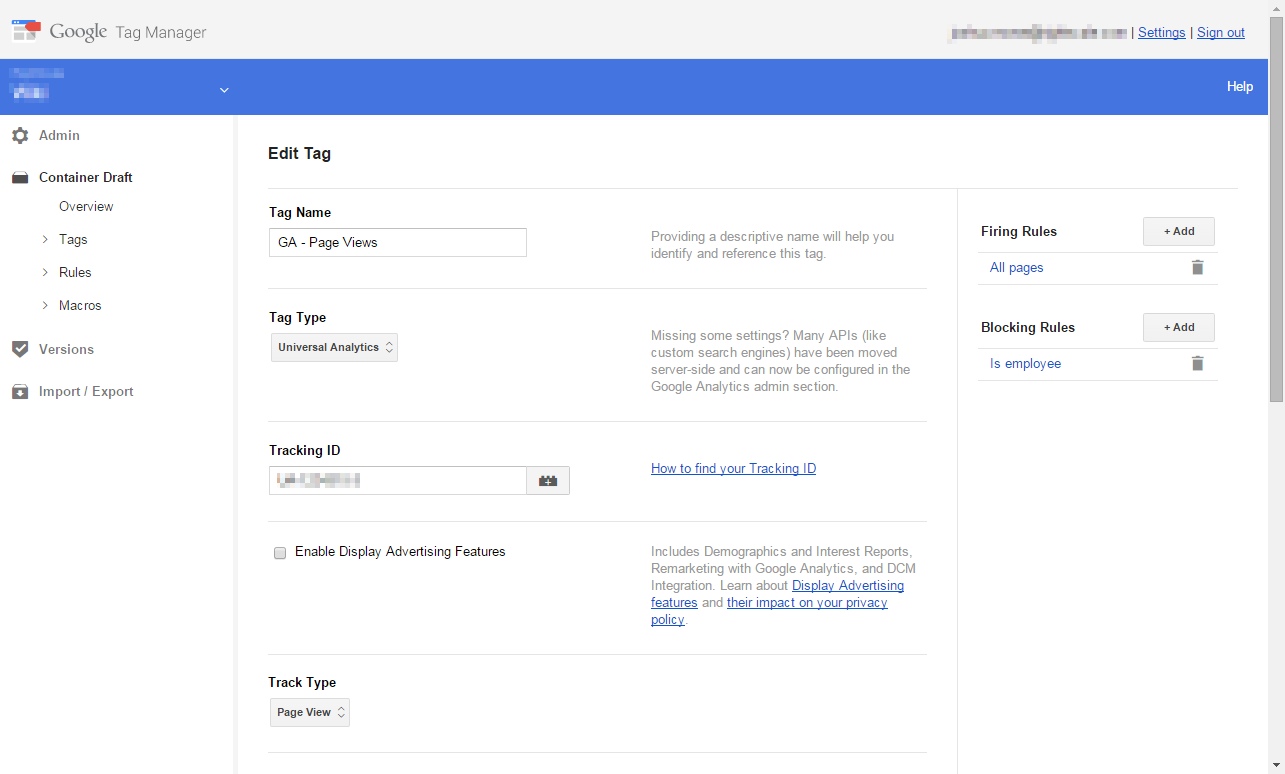
<p>Finally, you can choose any tags that you don’t wish to fire for your internal employees. Select the tag, and add the rule you just created as a blocking rule. This will work for Universal Analytics tags, as well as any third party tags that you might have created.</p>

<div id="attachment_667" style="width: 310px" class="wp-caption aligncenter">
  <a href="/assets/oldsite/wp-content/uploads/2015/06/2015-06-14-19_35_17-Google-Tag-Manager.png" data-rel="lightbox-9"><img class="size-medium wp-image-667" src="/assets/oldsite/wp-content/uploads/2015/06/2015-06-14-19_35_17-Google-Tag-Manager-300x181.png" alt="Add rule to existing tags" width="300" height="181" /></a>
  
  <p class="wp-caption-text">
    Add rule to existing tags
  </p>
</div>

<p>That’s it! Your internal traffic will now be filtered without any extra effort on the part of your remote employees.</p>

<p> </p>

<p> </p>]]></content><author><name>Josh</name></author><category term="Analytics" /><category term="google analytics" /><category term="google tag manager" /><summary type="html"><![CDATA[The distributed employee problem]]></summary></entry><entry><title type="html">My UX Meetup presentation on Google Tag Manager and Google Analytics</title><link href="//2015/05/17/my-ux-meetup-presentation-on-google-tag-manager-and-google-analytics/" rel="alternate" type="text/html" title="My UX Meetup presentation on Google Tag Manager and Google Analytics" /><published>2015-05-17T00:00:00+00:00</published><updated>2015-05-17T00:00:00+00:00</updated><id>//2015/05/17/my-ux-meetup-presentation-on-google-tag-manager-and-google-analytics</id><content type="html" xml:base="//2015/05/17/my-ux-meetup-presentation-on-google-tag-manager-and-google-analytics/"><![CDATA[<p>Last November, I gave a talk titled ‘<a href="http://www.meetup.com/SB-UX-Meetup/events/210906902/">Web Analytics and User Experience</a>‘ at the Santa Barbara UX Meetup (where I happen to be an organizer). Though I posted the screen recording to <a href="https://www.youtube.com/channel/UCMs9PaGCCHW_ZpfJfyElfGw" data-rel="lightbox-video-0">my YouTube channel</a>, I neglected to write a blog entry (not helped by the fact that my website was basically defunct and my previous web host was about to lose all of my data).</p>

<p>The talk focused on using Google Tag Manager and Google Analytics in tandem to monitor not only your users’ broad paths through your product, but also to track specific events and user traits (custom dimensions). I meant to follow up at some point with a blog post about the subject, so hopefully you will see that in the coming weeks. In the meantime, I encourage you to watch <a href="http://youtu.be/JHm16yRh1nc" data-rel="lightbox-video-1">the hour-long presentation</a> when you have some free time.</p>]]></content><author><name>Josh</name></author><category term="Analytics" /><category term="Presentation" /><category term="google analytics" /><category term="google tag manager" /><summary type="html"><![CDATA[Last November, I gave a talk titled ‘Web Analytics and User Experience‘ at the Santa Barbara UX Meetup (where I happen to be an organizer). Though I posted the screen recording to my YouTube channel, I neglected to write a blog entry (not helped by the fact that my website was basically defunct and my previous web host was about to lose all of my data).]]></summary></entry><entry><title type="html">New theme and more</title><link href="//2015/05/09/new-theme-and-more/" rel="alternate" type="text/html" title="New theme and more" /><published>2015-05-09T00:00:00+00:00</published><updated>2015-05-09T00:00:00+00:00</updated><id>//2015/05/09/new-theme-and-more</id><content type="html" xml:base="//2015/05/09/new-theme-and-more/"><![CDATA[<p>This site has been dormant for a while, but I’m finally ready to breath some new life into it. So what has changed?</p>

<p>First, I’ve picked a new responsive theme. Not only does this help me avoid <a href="http://thenextweb.com/insider/2015/02/26/google-will-rank-your-site-higher-if-its-mobile-friendly-starting-april-21/">Google’s new penalty</a> for sites that aren’t mobile-friendly, but it looks cleaner and more modern (my previous theme was selected almost 10 years ago when I first set this site up).</p>

<p>Second, I’ve updated my <a href="/resume/">resume</a>, particularly the <a href="/assets/documents/josh-morse-resume.pdf">PDF version</a> with a few of my more recent activities and a new design.</p>

<p>Third, and least visibly, the site is now hosted statically on S3 rather than the previous managed hosting. This saves me about $8/month in hosting, and gives me better uptime and more reliable performance. It was also an interesting activity for me, and I plan to write a future blog post about the process.</p>

<p>So I’m returning to write for the web. Hopefully I’ll have some new content soon!</p>]]></content><author><name>Josh</name></author><category term="Uncategorized" /><summary type="html"><![CDATA[This site has been dormant for a while, but I’m finally ready to breath some new life into it. So what has changed?]]></summary></entry><entry><title type="html">RightScale demo at Google IO!</title><link href="//2012/06/28/rightscale-demo-at-google-io/" rel="alternate" type="text/html" title="RightScale demo at Google IO!" /><published>2012-06-28T00:00:00+00:00</published><updated>2012-06-28T00:00:00+00:00</updated><id>//2012/06/28/rightscale-demo-at-google-io</id><content type="html" xml:base="//2012/06/28/rightscale-demo-at-google-io/"><![CDATA[<p>RightScale took to the stage at Google I/O to present a demo of RightScale processing videos on <a href="http://www.google.com/url?sa=t&amp;rct=j&amp;q=&amp;esrc=s&amp;source=web&amp;cd=1&amp;ved=0CFUQFjAA&amp;url=http%3A%2F%2Fcloud.google.com%2Fproducts%2Fcompute-engine.html&amp;ei=OMnsT9C-GOSTmQXM6JTOAg&amp;usg=AFQjCNFjqDMp4Qq82tOSlLvqrXDV7TBz1w">Google Compute Engine</a>. Welcome to a truly multi-cloud world.</p>

<p>For more information, check out <a href="owl.li/bURLN">this RightScale blog entry</a>.</p>

<div id="attachment_520" style="width: 310px" class="wp-caption aligncenter">
  <a href="http://joshuamorse.com/wp-content/uploads/2012/06/Google_IO.png" data-rel="lightbox-0"><img class="size-medium wp-image-520" title="Rightscale at Google IO" src="http://joshuamorse.com/wp-content/uploads/2012/06/Google_IO-300x168.png" alt="Rightscale at Google IO" width="300" height="168" /></a>
  
  <p class="wp-caption-text">
    Rightscale at Google IO
  </p>
</div>]]></content><author><name>Josh</name></author><category term="RightScale" /><summary type="html"><![CDATA[RightScale took to the stage at Google I/O to present a demo of RightScale processing videos on Google Compute Engine. Welcome to a truly multi-cloud world.]]></summary></entry><entry><title type="html">Lenovo Thinkpad T430s Review (i5 with Nvidia Optimus)</title><link href="//2012/06/24/lenevo-thinkpad-t430s-review-i5-with-nvidia-optimus/" rel="alternate" type="text/html" title="Lenovo Thinkpad T430s Review (i5 with Nvidia Optimus)" /><published>2012-06-24T00:00:00+00:00</published><updated>2012-06-24T00:00:00+00:00</updated><id>//2012/06/24/lenevo-thinkpad-t430s-review-i5-with-nvidia-optimus</id><content type="html" xml:base="//2012/06/24/lenevo-thinkpad-t430s-review-i5-with-nvidia-optimus/"><![CDATA[<p>I’ve had a Thinkpad T410s for the past 2 years, but the non-Trim Samsung hard drive was hurting my productivity, and IT agreed to buy me a new computer. Naturally, we turned to the recently released T430s. As I really wanted to run 3 displays with the Series 3 Mini Dock Plus I already had, we decided to get the Core i5 model with Nvidia Optimus graphics. I’ve had the machine now for a few days, and while I’m still waiting to upgrade from 4GB to 16GB of RAM, I thought I’d share some thoughts and benchmarks for those who may be considering purchasing this machine.</p>

<div align="center">
  <a href="http://joshuamorse.com/wp-content/uploads/2012/06/P1070124.jpg" data-rel="lightbox-0"><img class="aligncenter size-medium wp-image-478" title="T430s open" src="http://joshuamorse.com/wp-content/uploads/2012/06/P1070124-300x168.jpg" alt="T430s open" width="300" height="168" /></a>
</div>

<!--more-->

<h2 id="specs">Specs</h2>

<p>Here are my T430s specs (model version is 2352-CTO):</p>

<ul>
  <li>14.1 inch, HD+ LED display (1600×900)</li>
  <li>Intel Core i5-3320M processor (3M Cache, up to 3.30 GHz)</li>
  <li>240GB Corsair Force 3 SSD</li>
  <li>NVidia Optimus 5200m + Intel HD 4000 graphics</li>
  <li>4 GB PC3-12800 DDR3 (1 DIMM) (will update when I get 16GB)</li>
  <li>Intel Centrino Ultimate-N 6300 AGN</li>
  <li>Integrated Bluetooth 4.0</li>
  <li>Mobile Broadband Ready</li>
  <li>6 Cell Primary Battery</li>
  <li>Ultrabay battery</li>
  <li>Fingerprint reader</li>
  <li>Multi-touch Touchpad</li>
  <li>720p Webcam</li>
  <li>DVD-RW Drive</li>
  <li>Windows 7 Professional 64-Bit</li>
  <li>ThinkPad Mini Dock Plus (Advanced Series 3)</li>
  <li>Weight: 3.89 lbs (haven’t weighed it personally)</li>
  <li>[Full Specifications at the Lenovo site][1]</li>
</ul>

<h2 id="body-and-keyboard">Body and Keyboard</h2>

<p>The feel of the T430s is excellent, very similar to my T410s. The computer feels incredibly sturdy; the ThinkPad quality still remains, with solid steel hinges and a magnesium chassis. The palm rests have less flex than my T410s. At the same time, the laptop is under 4 pounds. While this is becoming more common with today’s ultrabooks, they don’t possess the array of ports and docking connection. Compared to many laptops at this price-point, Lenovo continues to lead in build quality.</p>

<p><a href="http://joshuamorse.com/wp-content/uploads/2012/06/P1070106.jpg" data-rel="lightbox-1"><img class="aligncenter size-medium wp-image-480" title="T430s closed" src="http://joshuamorse.com/wp-content/uploads/2012/06/P1070106-300x202.jpg" alt="T430s closed" width="300" height="202" /></a></p>

<p>I was originally concerned about the chiclet keyboard, especially coming from the T410s. I can say that the general keyboard is still a pleasure to type on, with good feedback, comfort, and tactile response. The touchpad seems a little more accurate then my T410s, as I haven’t had a problem with gestures so far. I’m adjusting to the new key placements; so far it isn’t bad. The BIOS still allows the switching of the Fn and Ctrl keys, something I did almost immediately. I miss the hibernate key, but I appreciate having a dedicated Print Screen key at the bottom. I don’t particularly care for the top row of the keyboard, however; the function keys are squashed together and raised a few millimeters from the rest of the keyboard, making them more difficult to touch-type with.</p>

<p><a href="http://joshuamorse.com/wp-content/uploads/2012/06/P1070115.jpg" data-rel="lightbox-2"><img class="aligncenter size-medium wp-image-479" title="T430s keyboard" src="http://joshuamorse.com/wp-content/uploads/2012/06/P1070115-300x168.jpg" alt="T430s keyboard" width="300" height="168" /></a></p>

<p>The backlighting on the keyboard is fine, with two levels of strength. I will probably continue to use the tried and true think-light near the webcam when it is necessary, but it’s nice to have options.</p>

<p>The fingerprint reader is one of my favorite features, and it seems to work well, though there is a little bit of an aesthetic change. I appreciate that the green light is not on when the computer is turned off (though you can still scan your finger). I’ve missed swipes more often than on my T410s, but it may just be me adjusting to a new layout.</p>

<h2 id="screen">Screen</h2>

<p>Thinkpads are not known for having great screens, and the T430s continues that tradition. The high resolution screen is crisp, and the horizontal viewing angles are acceptable.</p>

<p>Unfortunately, the vertical viewing angles are quite poor, slightly worse than my T410s. Playing the the gamma helps a little, but this is not a screen that will work well to share a movie or even a webpage with another person if you are at different heights.</p>

<p>Overall, I’m disappointed in the screen, especially with some companies, notably Apple, really producing some excellent displays at this time.</p>

<table>
  <tr>
    <td>
      <p>
        <div id="attachment_481" style="width: 160px" class="wp-caption aligncenter">
          <a href="http://joshuamorse.com/wp-content/uploads/2012/06/P1070129.jpg" data-rel="lightbox-3"><img class="size-thumbnail wp-image-481" title="Normal angle" src="http://joshuamorse.com/wp-content/uploads/2012/06/P1070129-150x150.jpg" alt="T430s with screen at a normal angle" width="150" height="150" /></a>
          
          <p class="wp-caption-text">
            Normal
          </p>
        </div>&lt;/td&gt; 
        
        <td>
          <p>
            <div id="attachment_482" style="width: 160px" class="wp-caption aligncenter">
              <a href="http://joshuamorse.com/wp-content/uploads/2012/06/P1070130.jpg" data-rel="lightbox-4"><img class="size-thumbnail wp-image-482" title="T430s Screen Angled Back" src="http://joshuamorse.com/wp-content/uploads/2012/06/P1070130-150x150.jpg" alt="T430s Screen Angled Back" width="150" height="150" /></a>
              
              <p class="wp-caption-text">
                Angled back
              </p>
            </div>&lt;/td&gt; 
            
            <td>
              <p>
                <div id="attachment_483" style="width: 160px" class="wp-caption aligncenter">
                  <a href="http://joshuamorse.com/wp-content/uploads/2012/06/P1070131.jpg" data-rel="lightbox-5"><img class="size-thumbnail wp-image-483" title="T430s Screen Angled Forward" src="http://joshuamorse.com/wp-content/uploads/2012/06/P1070131-150x150.jpg" alt="T430s Screen Angled Forward" width="150" height="150" /></a>
                  
                  <p class="wp-caption-text">
                    Angled forward
                  </p>
                </div>&lt;/td&gt; &lt;/tr&gt; &lt;/tbody&gt; &lt;/table&gt; 
                
                <p>
                  In addition, I&#8217;ve really noticed issues with greys and off-white colors blending into white backgrounds. See the image below where I compare Apple&#8217;s store; you can hardly make out the adapters on the left side of the page on the T430s, but they look fine on my external monitor. The only way to see them is to tilt the screen back about 120 degrees, and then the rest of the colors begin to warp. This issue is becoming more noticeable the longer I use the machine. Setting Gamma to .8 and Saturation to 15 does seem to help significantly, though my external monitor is still superior.
                </p>
                
                <table>
                  <tr>
                    <td>
                      <p>
                        <div id="attachment_512" style="width: 260px" class="wp-caption aligncenter">
                          <a href="http://joshuamorse.com/wp-content/uploads/2012/06/2012-06-26-17.18.19.jpg" data-rel="lightbox-6"><img class="size-medium wp-image-512" title="T430s screen comparison 90 degrees" src="http://joshuamorse.com/wp-content/uploads/2012/06/2012-06-26-17.18.19-300x225.jpg" alt="T430s screen comparison 90 degrees" width="250" height="200" /></a>
                          
                          <p class="wp-caption-text">
                            90 degrees
                          </p>
                        </div>&lt;/td&gt; 
                        
                        <td>
                          <p>
                            <div id="attachment_513" style="width: 260px" class="wp-caption aligncenter">
                              <a href="http://joshuamorse.com/wp-content/uploads/2012/06/2012-06-26-17.18.45.jpg" data-rel="lightbox-7"><img class="size-medium wp-image-513" title="T430s screen comparison 120 degrees" src="http://joshuamorse.com/wp-content/uploads/2012/06/2012-06-26-17.18.45-300x225.jpg" alt="T430s screen comparison 120 degrees" width="250" height="200" /></a>
                              
                              <p class="wp-caption-text">
                                120 degrees
                              </p>
                            </div>&lt;/td&gt; &lt;/tr&gt; &lt;/tbody&gt; &lt;/table&gt; 
                            
                            <h2>
                              Ports and Docking Station
                            </h2>
                            
                            <p>
                              I&#8217;m still using my previous generation <a href="http://support.lenovo.com/en_US/product-and-parts/detail.page?&amp;LegacyDocID=MIGR-72873">Mini Dock Plus Series 3 (433810U)</a>, but it seems to work just fine, save for the understandable lack of USB 3.0 support.
                            </p>
                            
                            <p>
                              The Thinkpad itself has the following ports:
                            </p>
                            
                            <ul>
                              <li>
                                2 USB 3.0
                              </li>
                              <li>
                                1 Powered USB 2.0
                              </li>
                              <li>
                                1 USB/eSATA
                              </li>
                              <li>
                                Gigabit ethernet (10/100/1000)
                              </li>
                              <li>
                                Expresscard 34mm (I have an SD card reader in here)
                              </li>
                              <li>
                                3.5mm audio
                              </li>
                              <li>
                                VGA out
                              </li>
                              <li>
                                Mini Displayport
                              </li>
                            </ul>
                            
                            <p>
                              The introduction of two USB 3.0 ports was welcome, especially in this age of ultrabooks with only 2 USB ports total. Note that the Displayport has changed size, so older adapters will no longer work. It is, however, now compatible with Macbook adapters.
                            </p>
                            
                            <h2>
                              Noise, Heat, and Battery Life
                            </h2>
                            
                            <p>
                              The fan runs a little louder under load than my T410s, but not enough to really be bothersome. Even when running graphics benchmarks, the computer didn&#8217;t become very hot.
                            </p>
                            
                            <p>
                              In daily use (some web browsing and document editing) I was able to get around 4 hours of use with Nvidia graphics enabled, and closer to 5 with them disabled. I am at 75% display with the maximum better life settings in the Lenovo Power Manager and an extra bay battery.
                            </p>
                            
                            <p>
                              I ran a DVD with Windows Media Player on battery at 80% brightness with balanced power settings. The computer lasted 2 hours and 15 minutes before going to sleep. This was with the primary battery alone (DVD drive was in the bay). Though slightly better than my T410s, I really don&#8217;t feel that an extra battery should be necessary just to hit 4 hours, especially since it adds a little extra weight.
                            </p>
                            
                            <p>
                              <a href="http://joshuamorse.com/wp-content/uploads/2012/06/movie.jpg" data-rel="lightbox-8"><img class="aligncenter size-medium wp-image-486" title="T430s playing movie" src="http://joshuamorse.com/wp-content/uploads/2012/06/movie-300x268.jpg" alt="T430s playing movie" width="300" height="268" /></a>
                            </p>
                            
                            <p>
                              As a final note, the T430s is not &#8220;rapidcharge&#8221; out of the box. My batteries take 4+ hours to fully charge from a dead state.
                            </p>
                            
                            <h2>
                              Performance &amp; Connectivity
                            </h2>
                            
                            <p>
                              So far, the T430s has handled nearly everything I&#8217;ve thrown at it without a hiccup. I timed it, and from a total shutdown state it boots to the Windows desktop in almost exactly 30 seconds. I&#8217;m not a huge gamer, but I fired up Mass Effect 3, and was able to play on max graphics settings without any issues.
                            </p>
                            
                            <p>
                              Sound quality was solid for a laptop. The dual speakers project well, and while you won&#8217;t see rich bass, they are perfectly acceptable for a laptop of this size.
                            </p>
                            
                            <p>
                              My wireless card has been great, giving a consistant 300 mb connection to my 802.11n dual band network on both 2.4 and the 5 Ghz bands. Copying a 1 GB file over the network took just under a minute with a constant 18.5 megabyte stream. I&#8217;ve done some bluetooth tethering, and it also works flawlessly.
                            </p>
                            
                            <h2>
                              Benchmarks
                            </h2>
                            
                            <h3>
                              Windows Experience Index
                            </h3>
                            
                            <p>
                              WEI is not the best measure of performance, but it is a good starting point.
                            </p>
                            
                            <div id="attachment_457" style="width: 310px" class="wp-caption aligncenter">
                              <a href="http://joshuamorse.com/wp-content/uploads/2012/06/WEI-Intel-2.png" data-rel="lightbox-9"><img class="size-medium wp-image-457" title="WEI - T430s Intel" src="http://joshuamorse.com/wp-content/uploads/2012/06/WEI-Intel-2-300x246.png" alt="WEI scores: Processor - 7.2, Memory - 5.9, Graphics - 4.9, Gaming - 6.4 (6.3 on Nvidia), Hard Disk - 6.8" width="300" height="246" /></a>
                              
                              <p class="wp-caption-text">
                                WEI scores: Processor &#8211; 7.2, Memory &#8211; 5.9, Graphics &#8211; 4.9, Gaming &#8211; 6.4 (6.3 on Nvidia), Hard Disk &#8211; 6.8
                              </p>
                            </div>
                            
                            <p>
                              The processor is a powerhouse, and the Corsair SSD also pulls its own weight. I expect the memory score to increase once I jump to 16 GB of RAM, and will update the review accordingly. Interestingly, the Intel HD 4000 graphics posted a slightly higher score than when I enabled the Nvidia Optimus (more on that below)
                            </p>
                            
                            <h3>
                              3DMark Vantage
                            </h3>
                            
                            <p>
                              3DMark is a staple of graphics benchmarking, and I tested the T430s with Nvidia graphics enabled and disabled, with the following results:
                            </p>
                            
                            <table>
                              <tr>
                                <td>
                                  <p>
                                    <div id="attachment_458" style="width: 97px" class="wp-caption aligncenter">
                                      <a href="http://joshuamorse.com/wp-content/uploads/2012/06/3DMark-Intel-e1340569209581.png" data-rel="lightbox-10"><img class="size-medium wp-image-458" title="3DMark Intel Graphics" src="http://joshuamorse.com/wp-content/uploads/2012/06/3DMark-Intel-e1340569209581-87x300.png" alt="Score - P3162" width="87" height="300" /></a>
                                      
                                      <p class="wp-caption-text">
                                        P3162 (Nvidia graphics disabled)
                                      </p>
                                    </div>&lt;/td&gt; 
                                    
                                    <td>
                                      <p>
                                        <div id="attachment_459" style="width: 103px" class="wp-caption aligncenter">
                                          <a href="http://joshuamorse.com/wp-content/uploads/2012/06/3D-Mark-Nvidia-cropped.png" data-rel="lightbox-11"><img class="size-medium wp-image-459" title="3DMark Nvidia Graphics" src="http://joshuamorse.com/wp-content/uploads/2012/06/3D-Mark-Nvidia-cropped-93x300.png" alt="Score with Nvidia Graphics P4498" width="93" height="300" /></a>
                                          
                                          <p class="wp-caption-text">
                                            P4498 (Nvidia graphics enabled)
                                          </p>
                                        </div>&lt;/td&gt; &lt;/tr&gt; &lt;/tbody&gt; &lt;/table&gt; 
                                        
                                        <p>
                                          The graphics score is passable for some moderate mainstream gaming like Starcraft 2 or Mass Effect 3, but this is not a machine built to run Crysis 2. The Intel HD 4000 score seems low, but I believe that the 4GB of RAM is keeping that score down.
                                        </p>
                                        
                                        <h3>
                                          <strong>Geekbench</strong>
                                        </h3>
                                        
                                        <p>
                                          A newer, general benchmark that has seen more use of late.
                                        </p>
                                        
                                        <div id="attachment_460" style="width: 62px" class="wp-caption aligncenter">
                                          <a href="http://joshuamorse.com/wp-content/uploads/2012/06/Geekbench.png" data-rel="lightbox-12"><img class="size-medium wp-image-460" title="Geekbench" src="http://joshuamorse.com/wp-content/uploads/2012/06/Geekbench-52x300.png" alt="Score: 5895" width="52" height="300" /></a>
                                          
                                          <p class="wp-caption-text">
                                            Score: 5895
                                          </p>
                                        </div>
                                        
                                        <p>
                                          A score of 5895 is a little on the low side. For reference, the newest 2012 Macbook Air with a 1.8 Ghz i5 processor scored a 6,195 when <a href="http://www.engadget.com/2012/06/18/macbook-air-review/">reviewed by Engadget.</a> The 4GB of RAM is again dragging the score down, as the processor is scoring a respectable number. Again, I will update the benchmark once I get more RAM.
                                        </p>
                                        
                                        <h2>
                                          Nvidia Graphics
                                        </h2>
                                        
                                        <p>
                                          This is where things really started to go downhill. Nvidia graphics are a $300 upgrade, but I really wanted to run 3 displays at a time. As I noted above, battery life takes a noticeable hit when the Nvidia graphics are enabled in the BIOS, so that is already one knock against this feature.
                                        </p>
                                        
                                        <p>
                                          Looking at benchmarks above, the Nvidia graphics do make a difference when compared with the integrated solution. However, with 16GB of RAM I expect the integrated graphics to close the gap, as this <a href="http://forum.notebookreview.com/lenovo-ibm/668678-t430s-owners-would-owners-thread-47.html#post8637963">forum post</a> with the i7 and 16GB of RAM shows a score of P4200, just barely below the Nvidia score. It appears that the Nvidia solution offers no real benefit over the Intel 4000 HD integrated graphics.
                                        </p>
                                        
                                        <p>
                                          But at least I can run multiple monitors, right? Unfortunately, I am unable to power more than two displays simultaneously. I have connected two monitors through the VGA and Displayport on the laptop, and through the DVI ports on my dock. In both cases, I can see the 2 external monitors and the internal LCD in the Intel and Windows settings, but can only ever enable two of them. The Nvidia control panel, which normally has a &#8220;multiple display&#8221; setting, only shows 3D options. Lenovo sales assured me that the computer could power 4 displays, and their web documentation is such a mess that I struggled for hours trying to figure out the problem.
                                        </p>
                                        
                                        <p>
                                          After hours of investigation, it seems that all of the display adapters are powered by the Intel graphics, which is a departure from the T420s, when the Nvidia graphics powered the digital output (Displayport and DVI). The <a href="http://download.lenovo.com/ibmdl/pub/pc/pccbbs/mobiles/g5de28ww.txt">readme documentation for the Nvidia driver</a> seems to confirm this problem, stating that &#8220;No display is connected to this display adapter&#8221; for the 5200m. The Nvidia control panel also seems to show that only the Intel graphics powers all of the display adapters, as you can see in the screenshots below, where it is compared with the w520.
                                        </p>
                                        
                                        <table>
                                          <tr>
                                            <td>
                                              <p>
                                                <div id="attachment_466" style="width: 260px" class="wp-caption aligncenter">
                                                  <a href="http://joshuamorse.com/wp-content/uploads/2012/06/Nvidia-Control-Panel.png" data-rel="lightbox-13"><img class="size-medium wp-image-466" title="T430s Nvidia Control Panel" src="http://joshuamorse.com/wp-content/uploads/2012/06/Nvidia-Control-Panel-300x188.png" alt="T430s Nvidia Control Panel" width="250" height="188" /></a>
                                                  
                                                  <p class="wp-caption-text">
                                                    T430s Nvidia Control Panel
                                                  </p>
                                                </div>&lt;/td&gt; 
                                                
                                                <td>
                                                  <p>
                                                    <div id="attachment_467" style="width: 260px" class="wp-caption aligncenter">
                                                      <a href="http://joshuamorse.com/wp-content/uploads/2012/06/w520-dock-4-monitors-physx.gif" data-rel="lightbox-14"><img class="size-medium wp-image-467" title="w520 Nvidia Control Panel" src="http://joshuamorse.com/wp-content/uploads/2012/06/w520-dock-4-monitors-physx-300x203.gif" alt="w520 Nvidia Control Panel" width="250" height="203" /></a>
                                                      
                                                      <p class="wp-caption-text">
                                                        w520 Nvidia Control Panel
                                                      </p>
                                                    </div>&lt;/td&gt; &lt;/tr&gt; &lt;/tbody&gt; &lt;/table&gt; 
                                                    
                                                    <p>
                                                      I went so far as to endure a frustrating, hour long support call. The support staff and supervisor kept insisting that the Nvidia graphics would power up to 4 displays, even when he remotely logged in and I showed him the readme and Nvidia control panel. He eventually sent me recovery disks, insisting that it would solve the problem. While I appreciate that Lenovo offers USA-based phone support, this was not a great experience for me.
                                                    </p>
                                                    
                                                    <p>
                                                      Finally, one of my coworkers also ordered the same machine and tried to install two different Linux distros. Even with the Nvidia graphics disabled in the BIOS, he was unable to reliably power just one external monitor in addition to his T430s. Eventually, he was forced to return the machine and ended up with a Mac.
                                                    </p>
                                                    
                                                    <p>
                                                      In the end, it&#8217;s clear that the Nvidia graphics serve no purpose but to add unnecessary 3D acceleration, and can even be a net negative over integrated graphics (such as when using Linux). My advice is to purchase the i7 model with integrated graphics; it is cheaper and offers more value.
                                                    </p>
                                                    
                                                    <h2>
                                                      Conclusion
                                                    </h2>
                                                    
                                                    <h3>
                                                      Pros
                                                    </h3>
                                                    
                                                    <ul>
                                                      <li>
                                                        Best chiclet keyboard I&#8217;ve used
                                                      </li>
                                                      <li>
                                                        Solid build
                                                      </li>
                                                      <li>
                                                        Lightweight
                                                      </li>
                                                      <li>
                                                        Speedy processor
                                                      </li>
                                                      <li>
                                                        Quick boot times
                                                      </li>
                                                      <li>
                                                        Lots of ports
                                                      </li>
                                                      <li>
                                                        Works with existing docks
                                                      </li>
                                                    </ul>
                                                    
                                                    <h3>
                                                      Cons
                                                    </h3>
                                                    
                                                    <ul>
                                                      <li>
                                                        Poor viewing angles on the screen
                                                      </li>
                                                      <li>
                                                        No support for more than 2 simultaneous displays, even with Optimus graphics.
                                                      </li>
                                                      <li>
                                                        Nvidia graphics offer no real graphics performance gains to the Intel HD 4000
                                                      </li>
                                                      <li>
                                                        Mediocre battery life
                                                      </li>
                                                      <li>
                                                        Top row of keys is a little difficult to press
                                                      </li>
                                                      <li>
                                                        Frustrating sales and support experience
                                                      </li>
                                                    </ul>
                                                    
                                                    <h3>
                                                      Final Thoughts
                                                    </h3>
                                                    
                                                    <p>
                                                      I had always been a fan of Thinkpads, despite their history of mediocre displays. The solid build quality, great keyboards, powerful internal components, and great docking solutions have generally outweighed their issues. The T410s and T420s have been able to keep all of these aspects in a sub 4 lb form-factor with dedicated graphics, a feat very few competing machines can match.
                                                    </p>
                                                    
                                                    <p>
                                                      With the wave of ultrabooks being released, Lenovo faces increasingly impressive competition, and I feel that the T430s risks falling behind. An extra battery is required just to hit the low-end of battery life in the ultrabook market. The screen quality is barely acceptable. Worse, the T430s removed support for multiple external displays that was present in the T420s, and the Nvidia Optimus graphics provide no value on top of the integrated card. I could probably live with the screen, but the lack of external monitor support coupled with the frustrating hours I spent to finally figure out the problem (despite the best efforts of Lenovo sales, marketing, and support) have left a very bad taste in my mouth.
                                                    </p>
                                                    
                                                    <p>
                                                      Despite my personal concerns, the T430s remains a solid machine, with powerful internal components, a great keyboard, and solid construction. At the end of the day, if you don&#8217;t mind buying a bay battery, don&#8217;t need more than 1 external display, and can live with poor viewing angles, the Thinkpad T430s is still probably a worthwhile purchase. If you decide to purchase the T430s, I would definitely recommend the i7 version with integrated graphics. For myself, I am debating whether to return my T430s for a notebook from another vendor that supports their own marketing and sales claims, powers multiple monitors, and provides a better quality screen.
                                                    </p>
                                                    
                                                    <h3>
                                                      Resources
                                                    </h3>
                                                    
                                                    <ul>
                                                      <li>
                                                        <a href="http://www.lenovo.com/products/us/laptop/thinkpad/t-series/t430s/">Lenovo T430s page</a>
                                                      </li>
                                                      <li>
                                                        <a href="http://forum.notebookreview.com/lenovo-ibm/668678-t430s-owners-would-owners-thread.html">T430s thread on notebookreview.com</a>
                                                      </li>
                                                    </ul>
                                                    
                                                    <p>
                                                      Feel free to leave a comment. I will try to answer any questions as I have time.
                                                    </p>

 [1]: http://www.lenovo.com/products/us/laptop/thinkpad/t-series/t430s/T430s-datasheet.pdf
</p></td></p></td></tr></table></p></td></p></td></tr></table></p></td></p></td></tr></table></p></td></p></td></p></td></tr></table>]]></content><author><name>Josh</name></author><category term="gadgets" /><category term="laptop" /><category term="lenovo" /><category term="review" /><category term="t430s" /><category term="thinkpad" /><summary type="html"><![CDATA[I’ve had a Thinkpad T410s for the past 2 years, but the non-Trim Samsung hard drive was hurting my productivity, and IT agreed to buy me a new computer. Naturally, we turned to the recently released T430s. As I really wanted to run 3 displays with the Series 3 Mini Dock Plus I already had, we decided to get the Core i5 model with Nvidia Optimus graphics. I’ve had the machine now for a few days, and while I’m still waiting to upgrade from 4GB to 16GB of RAM, I thought I’d share some thoughts and benchmarks for those who may be considering purchasing this machine.]]></summary></entry><entry><title type="html">4 simple tips to get you ahead of 80% of job applicants I’ve reviewed</title><link href="//2012/01/11/4-simple-tips-to-get-you-ahead-of-80-of-job-applicants-ive-reviewed/" rel="alternate" type="text/html" title="4 simple tips to get you ahead of 80% of job applicants I’ve reviewed" /><published>2012-01-11T00:00:00+00:00</published><updated>2012-01-11T00:00:00+00:00</updated><id>//2012/01/11/4-simple-tips-to-get-you-ahead-of-80-of-job-applicants-ive-reviewed</id><content type="html" xml:base="//2012/01/11/4-simple-tips-to-get-you-ahead-of-80-of-job-applicants-ive-reviewed/"><![CDATA[<p>I thought most of these things were commonly taught in school, but based on many job applications I’ve recently reviewed, applicants either don’t know or are ignoring them. Don’t let it happen to you.</p>

<p>1) Write a cover letter. Just create a nice, two paragraph letter that briefly covers your background, skills, and interests.</p>

<p>2) When you apply, add a couple sentences to your cover letter about why you think you are a good fit for the job. This should show that you’ve at least taken 5 minutes to read the company website and learn what it is that we do. A totally generic cover letter is just as bad as no cover letter at all.</p>

<p>3) If you are given any type of homework, or even just some emailed questions to answer, finish it as soon as possible. It will take the same amount of time to complete no matter how late you do it, but you will appear much more interested and competent if you complete it in a day rather than a week.</p>

<p>4) If you have any questions about anything in the interview process, such as homework, interview timing, or even the dress code, ask about it early on. It’s much better to make sure you are on the right track than to go down the wrong path and waste everyone’s time. Asking questions makes you look more professional, not less.</p>

<p>Remember, a job interview is a privilege, not a right. If you don’t put some time and energy into applying for the job, I’m not going to waste my time and energy interviewing you.</p>]]></content><author><name>Josh</name></author><category term="Original" /><category term="interviewing" /><summary type="html"><![CDATA[I thought most of these things were commonly taught in school, but based on many job applications I’ve recently reviewed, applicants either don’t know or are ignoring them. Don’t let it happen to you.]]></summary></entry><entry><title type="html">Meebo Auto-Away Chrome Extension</title><link href="//2011/09/24/meebo-auto-away-chrome/" rel="alternate" type="text/html" title="Meebo Auto-Away Chrome Extension" /><published>2011-09-24T00:00:00+00:00</published><updated>2011-09-24T00:00:00+00:00</updated><id>//2011/09/24/meebo-auto-away-chrome</id><content type="html" xml:base="//2011/09/24/meebo-auto-away-chrome/"><![CDATA[<p>It’s been pretty quiet around here, but I’ve finally motivated myself to publish a new Chrome extension: Meebo Auto-Away. This superceeds my <a href="http://joshuamorse.com/2010/10/24/meebo-auto-away/">old desktop program</a>, and provides much smoother functionality.</p>

<p>Meebo Auto-Away is a small extension that allows you to specify idle time (in seconds), and away message, and a back message. It will only function if you are signed into meebo.com in a Chrome tab.</p>

<p>When your computer has been idle for the specified number of seconds, your Meebo status will automatically be set to away using the provided message. When you return from being idle, you will automatically be set to available using the provided back message.</p>

<p>If you wish to hide the Meebo Auto-Away icon, you can right-click on it and select “hide icon”. You can still manage your settings by navigating to Tools-&gt;Extensions and clicking the “options” link for Meebo Auto-Away.</p>

<p>You can install the most up-to date extension from the <a href="https://chrome.google.com/webstore/detail/jfhopeibicgomdhedaeiclfglohaphdo">Meebo Auto-Away Chrome Extensions site</a>. Alternately, you can install <a href="http://www.joshuamorse.com/Meebo-Auto-Away.crx">this .crx file</a>.</p>

<p>Questions, comments, and general feedback can be sent from <a href="http://joshuamorse.com/contact-me/">my contact page</a>.</p>

<p><a href="http://joshuamorse.com/wp-content/uploads/2011/09/Screenshot.png" data-rel="lightbox-0"><img src="http://joshuamorse.com/wp-content/uploads/2011/09/Screenshot-300x187.png" alt="Meebo Auto-Away Screenshot" title="Meebo Auto-Away Screenshot" width="300" height="187" class="aligncenter size-medium wp-image-426" /></a></p>]]></content><author><name>Josh</name></author><category term="programming" /><summary type="html"><![CDATA[It’s been pretty quiet around here, but I’ve finally motivated myself to publish a new Chrome extension: Meebo Auto-Away. This superceeds my old desktop program, and provides much smoother functionality.]]></summary></entry><entry><title type="html">Interaction 11</title><link href="//2011/02/06/interaction-11/" rel="alternate" type="text/html" title="Interaction 11" /><published>2011-02-06T00:00:00+00:00</published><updated>2011-02-06T00:00:00+00:00</updated><id>//2011/02/06/interaction-11</id><content type="html" xml:base="//2011/02/06/interaction-11/"><![CDATA[<p>Well, I’ve certainly fallen behind on updating this blog, but for any IxDA Interaction 11 attendees that find there way here, I’d like to say hello! I will be heading out to the conference on Tuesday, and I’m looking forward to meeting other UX professionals and sharing stories, laughs, and a little ski time.</p>

<p>If you will be attending the conference and are looking for a job, RightScale is hiring an additional interaction designer (raising the total to 2!) We’re looking for someone with strong UX skills and the technical capabilities to quickly get up to speed on the RightScale product. RightScale is a great place to work, as a small but quickly growing company with great people and great weather. More information can be found <a href="http://tbe.taleo.net/NA4/ats/careers/requisition.jsp?org=RIGHTSCALE&amp;cws=1&amp;rid=165">here</a>.</p>

<p>Hope to see you over this next week!</p>]]></content><author><name>Josh</name></author><category term="conference" /><category term="employment" /><category term="ixda11" /><summary type="html"><![CDATA[Well, I’ve certainly fallen behind on updating this blog, but for any IxDA Interaction 11 attendees that find there way here, I’d like to say hello! I will be heading out to the conference on Tuesday, and I’m looking forward to meeting other UX professionals and sharing stories, laughs, and a little ski time.]]></summary></entry><entry><title type="html">Meebo Auto-Away – Set to Away When Idle is Detected</title><link href="//2010/10/24/meebo-auto-away/" rel="alternate" type="text/html" title="Meebo Auto-Away – Set to Away When Idle is Detected" /><published>2010-10-24T00:00:00+00:00</published><updated>2010-10-24T00:00:00+00:00</updated><id>//2010/10/24/meebo-auto-away</id><content type="html" xml:base="//2010/10/24/meebo-auto-away/"><![CDATA[<p><strong>This program has been superseded by my <a href="http://joshuamorse.com/2011/09/24/meebo-auto-away-chrome/">Meebo Auto-Away Chrome Extension</a>.</strong></p>

<p>Meebo Auto-Away is a simple program that detects your computer’s idle status and sets your Meebo status to away after a defined amount of idle time.</p>

<h2 id="background">Background</h2>

<p>Over the years, I have used a number of instant messaging aggregators, but my favorite so far has been <a href="http://www.meebo.com">Meebo</a>, a free, web-based tool that can handle the usual suspects, like AIM and MSN, but also ICQ and Facebook. In addition, because it is web based, I can log on from any computer and access my organized friend list and view the history of my messages.</p>

<p>My major complaint with Meebo has always been that it does not set users to away when the computer has been idle, a feature that is present on most modern instant messaging applications. The reason is that a web application cannot access the operating system to determine how long the computer has been idle. I had hoped that the Meebo notifier, a desktop application, would handle this functionality, but, alas, it does not.</p>

<p>After having several people continue to message me even though I had been away from my computer for hours, I decided that I needed to do something to solve this problem. Meebo has no public API, so I couldn’t simply write a program that checked the computer’s idle status and set a user to away through a backdoor channel.</p>

<p>Instead, I went through the front door, embedding a browser into a .Net application that I’ve christened Meebo Auto-Away. Essentially, a user logs into Meebo through the embedded browser, but Meebo Auto-Away can determin a user’s idle time and set the user to away the same way that a web browser does.</p>

<h2 id="using-meebo-auto-away">Using Meebo Auto-Away</h2>

<p>To use the program, simply download the executable and run it (you will need a Windows computer with .Net installed). After the application starts, you can enter the number of seconds you would like the program to wait before setting you away and the away message you would like displayed. You can then log into Meebo through the embedded web browser. You could actually use Meebo Auto-Away for all of your instant messaging, though I would recommend minimizing it to the system tray and using Meebo in a full browser (Meebo handles multiple sessions very well).</p>

<p>You can save your current idle time and away message values as the default in the file menu. Meebo Auto-Away connects through https, so your session is secure. I do not collect any data from the Meebo Auto-Away application or install any other applications. This is a personal program that I created for my own use, and I am sharing so that others frustrated Meebo users can also enjoy setting their status to away on idle.</p>

<p>If you have any questions or find any bugs, feel free to post them in the comments.</p>

<h2 id="download">Download</h2>

<p>Note that this application is freeware. I am not an employee of Meebo or associated with them in any way, save that I use and appreciate their application. By downloading, you agree that you are using Meebo Auto-Away at your own risk. I am not responsible for any issues that result from using Meebo Auto-Away.</p>

<h3 id="download-meeboautoaway_v10"><a href="http://joshuamorse.com/wp-content/uploads/2010/10/MeeboAutoAway_v1.0.exe">Download MeeboAutoAway_v1.0</a></h3>

<h2 id="screenshot">Screenshot</h2>

<p style="text-align: center;">
  <a href="http://joshuamorse.com/wp-content/uploads/2010/10/MeeboAutoAwayScreenshotv2.2.png" data-rel="lightbox-0"><img class="aligncenter size-full wp-image-411" title="MeeboAutoAwayScreenshotv2.2" src="http://joshuamorse.com/wp-content/uploads/2010/10/MeeboAutoAwayScreenshotv2.2.png" alt="MeeboAutoAwayScreenshotv2.2" width="639" height="479" /></a>
</p>

<p style="text-align: center;">
  <a href="http://joshuamorse.com/wp-content/uhttp://joshuamorse.com/wp-content/uploads/2010/10/MeeboAutoAwayScreenshotv2.1.pngploads/2010/10/MeeboAutoAwayScreenshot2.png" data-rel="lightbox-1"><br /> </a>
</p>]]></content><author><name>Josh</name></author><category term="programming" /><category term="programs" /><summary type="html"><![CDATA[This program has been superseded by my Meebo Auto-Away Chrome Extension.]]></summary></entry><entry><title type="html">Latitude XT2 With SSD Review Update</title><link href="//2010/03/09/latitude-xt2-with-ssd-review-update/" rel="alternate" type="text/html" title="Latitude XT2 With SSD Review Update" /><published>2010-03-09T00:00:00+00:00</published><updated>2010-03-09T00:00:00+00:00</updated><id>//2010/03/09/latitude-xt2-with-ssd-review-update</id><content type="html" xml:base="//2010/03/09/latitude-xt2-with-ssd-review-update/"><![CDATA[<p>In a [previous post][1], I reviewed my Latitude XT2 Tablet PC with Windows 7 Beta, and I noted that I may buy an SSD in the future. Well, the future is now, and I recently purchased an Intel X-18m second generation drive and installed it in my computer.</p>

<p>Quantitatively, the numbers show a marked increase in both the Windows Experience Index and the HD Tune results, seen below. Qualitatively, the difference is amazing. My computer boots from a cold start to a working desktop in under 20 seconds, and it takes mere seconds to install a program like Firefox. It almost feels like I have a whole new computer. Certainly worth the ~$230 for the 80 gigabyte drive.</p>

<table border="0">
  <tr>
    <td>
      <p>
        <div id="attachment_374" style="width: 210px" class="wp-caption aligncenter">
          <a href="http://joshuamorse.com/wp-content/uploads/2010/02/WEI-ssd.png" data-rel="lightbox-0"><img class="size-medium wp-image-374 " title="Windows Experience Index - SSD" src="http://joshuamorse.com/wp-content/uploads/2010/02/WEI-ssd-300x270.png" alt="WEI with SSD - 7.7 for HDD" width="200" height="180" /></a>
          
          <p class="wp-caption-text">
            WEI with SSD - 7.7 for HDD
          </p>
        </div>&lt;/td&gt; 
        
        <td>
          <p>
            <div id="attachment_253" style="width: 210px" class="wp-caption aligncenter">
              <a href="http://joshuamorse.com/wp-content/uploads/2009/05/wei.png" data-rel="lightbox-1"><img class="size-medium wp-image-253 " title="Windows Experience Index" src="http://joshuamorse.com/wp-content/uploads/2009/05/wei-300x201.png" alt="WEI without SSD - 4.6 for HD" width="200" height="134" /></a>
              
              <p class="wp-caption-text">
                WEI without SSD - 4.6 for HDD
              </p>
            </div>&lt;/td&gt; &lt;/tr&gt; &lt;/tbody&gt; &lt;/table&gt; 
            
            <table border="0">
              <tr>
                <td>
                  <p>
                    <div id="attachment_373" style="width: 210px" class="wp-caption aligncenter">
                      <a href="http://joshuamorse.com/wp-content/uploads/2010/02/hdtune-read.png" data-rel="lightbox-2"><img class="size-medium wp-image-373 " title="hdtune-read" src="http://joshuamorse.com/wp-content/uploads/2010/02/hdtune-read-300x263.png" alt="HD Tune with SSD" width="200" height="175" /></a>
                      
                      <p class="wp-caption-text">
                        HD Tune with SSD
                      </p>
                    </div>&lt;/td&gt; 
                    
                    <td>
                      <p>
                        <div id="attachment_256" style="width: 210px" class="wp-caption aligncenter">
                          <a href="http://joshuamorse.com/wp-content/uploads/2009/05/hdtune.png" data-rel="lightbox-3"><img class="size-medium wp-image-256 " title="hdtune" src="http://joshuamorse.com/wp-content/uploads/2009/05/hdtune-300x241.png" alt="HD Tune without SSD" width="200" height="161" /></a>
                          
                          <p class="wp-caption-text">
                            HD Tune without SSD
                          </p>
                        </div>&lt;/td&gt; &lt;/tr&gt; &lt;/tbody&gt; &lt;/table&gt;

 [1]: http://joshuamorse.com/2009/05/09/quick-review-of-my-new-latitude-xt2-with-windows-7-beta/
</p></td></p></td></tr></table></p></td></p></td></tr></table>]]></content><author><name>Josh</name></author><category term="Tablet PC" /><category term="Uncategorized" /><category term="review" /><category term="tablet pcs" /><summary type="html"><![CDATA[In a previous post, I reviewed my Latitude XT2 Tablet PC with Windows 7 Beta, and I noted that I may buy an SSD in the future. Well, the future is now, and I recently purchased an Intel X-18m second generation drive and installed it in my computer.]]></summary></entry></feed>